
How To Install Google Drive On Windows 11
Accessing files and media via hard storage is very convenient. However, when the size of your media, files, etc is very high then accessing those files becomes pretty hectic. However, with an increase in usage of the internet, it has become seamlessly easy to transfer all of your data to online storage and access it later via web platforms. In this online storage service, there are multiple providers you can choose to go with. But among all these cloud storage service providers, Google Drive is one of the most promising cloud storage. But sometimes the installation of this software itself becomes an issue. Therefore to help you out in this situation today we’ll be describing to you how to install Google Drive on Windows 11, step by step.
Video Tutorial: How To Install Google Drive On Windows 11
Step 1: Download Google Drive
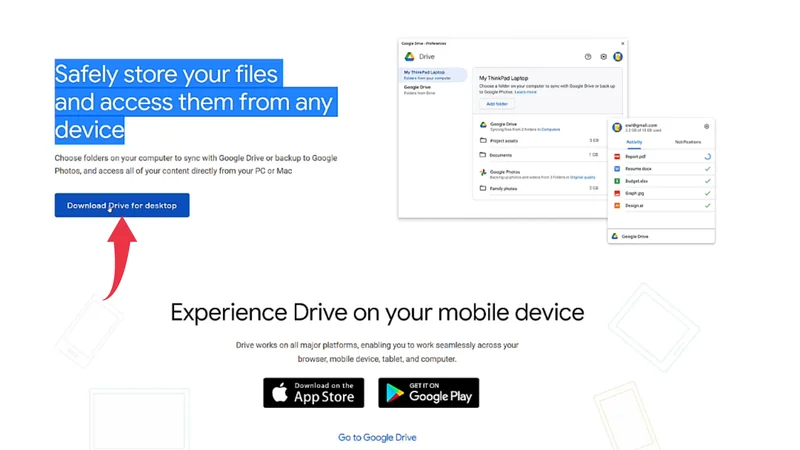
1) Firstly we will download Google Drive, for our windows 11 machine. Follow the download link provided below and click on the DOWNLOAD DRIVE FOR DESKTOP button.
Download Google Drive here: https://www.google.com/drive/download/
Step 2: Install Google Drive On Windows 11
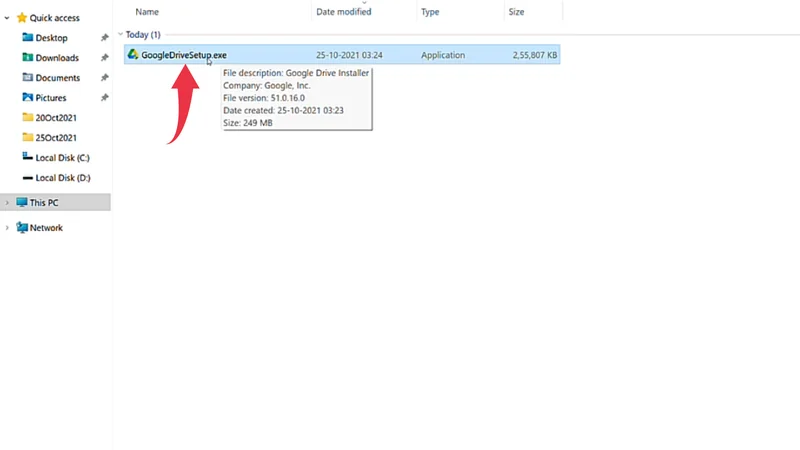
1) Once the download gets finished open the downloaded file in the folder where it has been downloaded. Double click, on the downloaded file, to start the Installation.
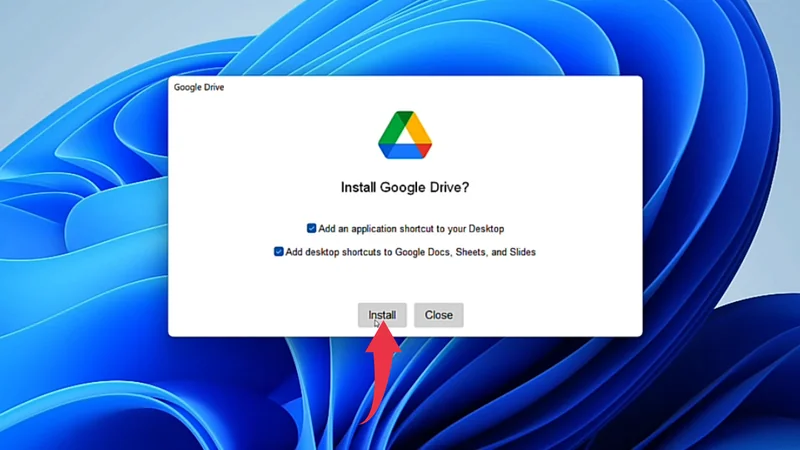
2) An installation window will popup, there tick both the checkboxes and, click on the Install button.
Step 3: Sign in With Browser
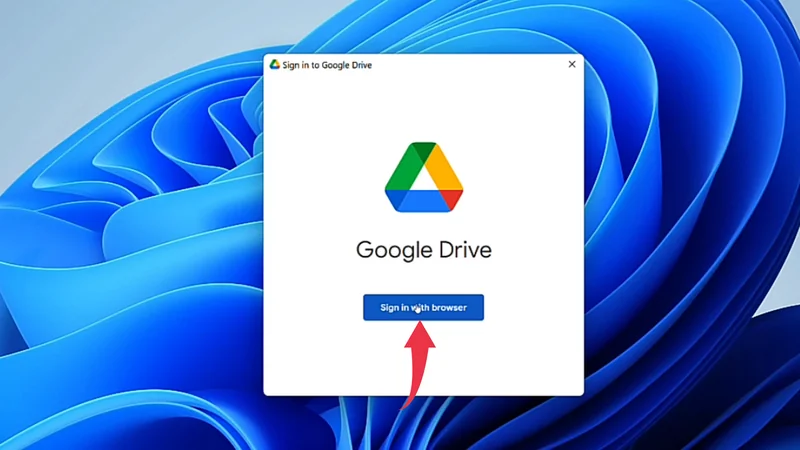
1) After successful installation, a popup window will appear asking you to sign in to your Google Account. There, simply click on the Sign-in With Browser button.
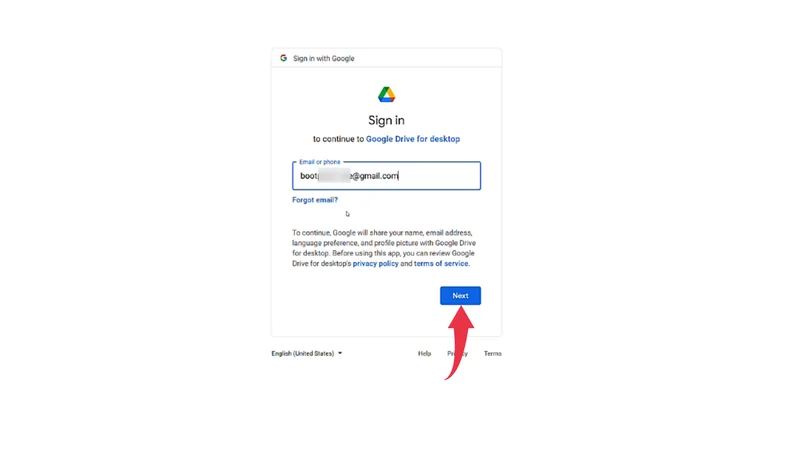
2) In the displayed text field enter your Gmail address. After that, click on the Next button.
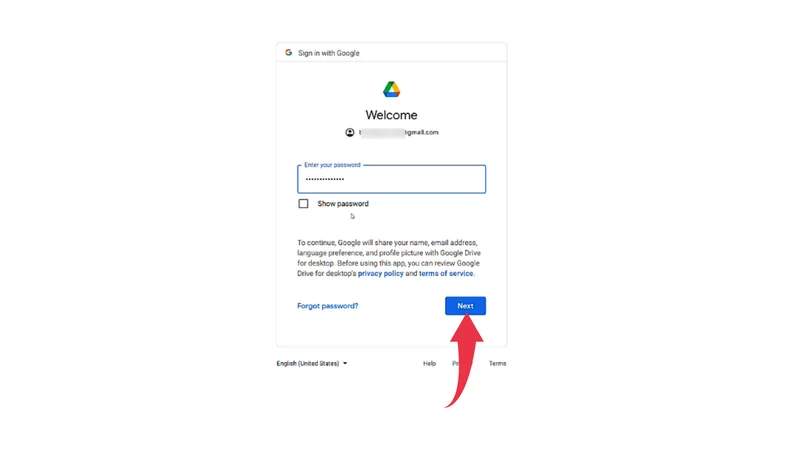
3) Now, safely enter the password of your Gmail account submitted before. After that, click on the Next button.
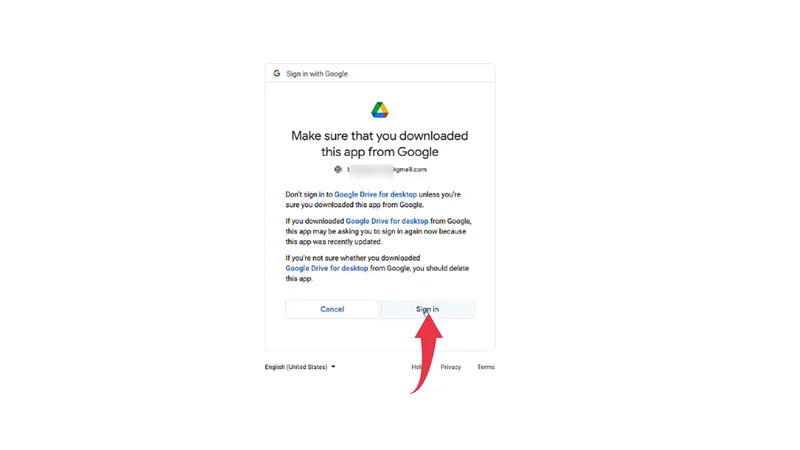
4) A security warning from Google will show up, so here click on the Sign-in button.
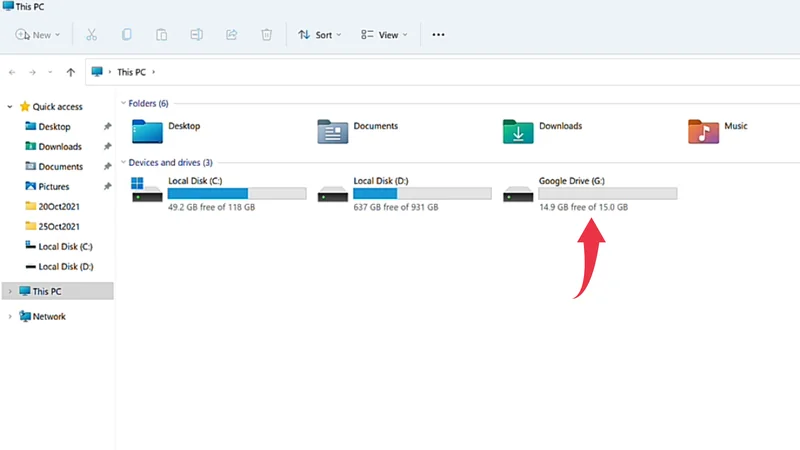
5) After all the above steps open up, This PC [file manager], there will be a new drive with the name Google Drive.
Also Read: How To Install Github Desktop On Windows 11